Pixel Room - 3 Living Pixel-Art Stream Backgrounds
A downloadable tool
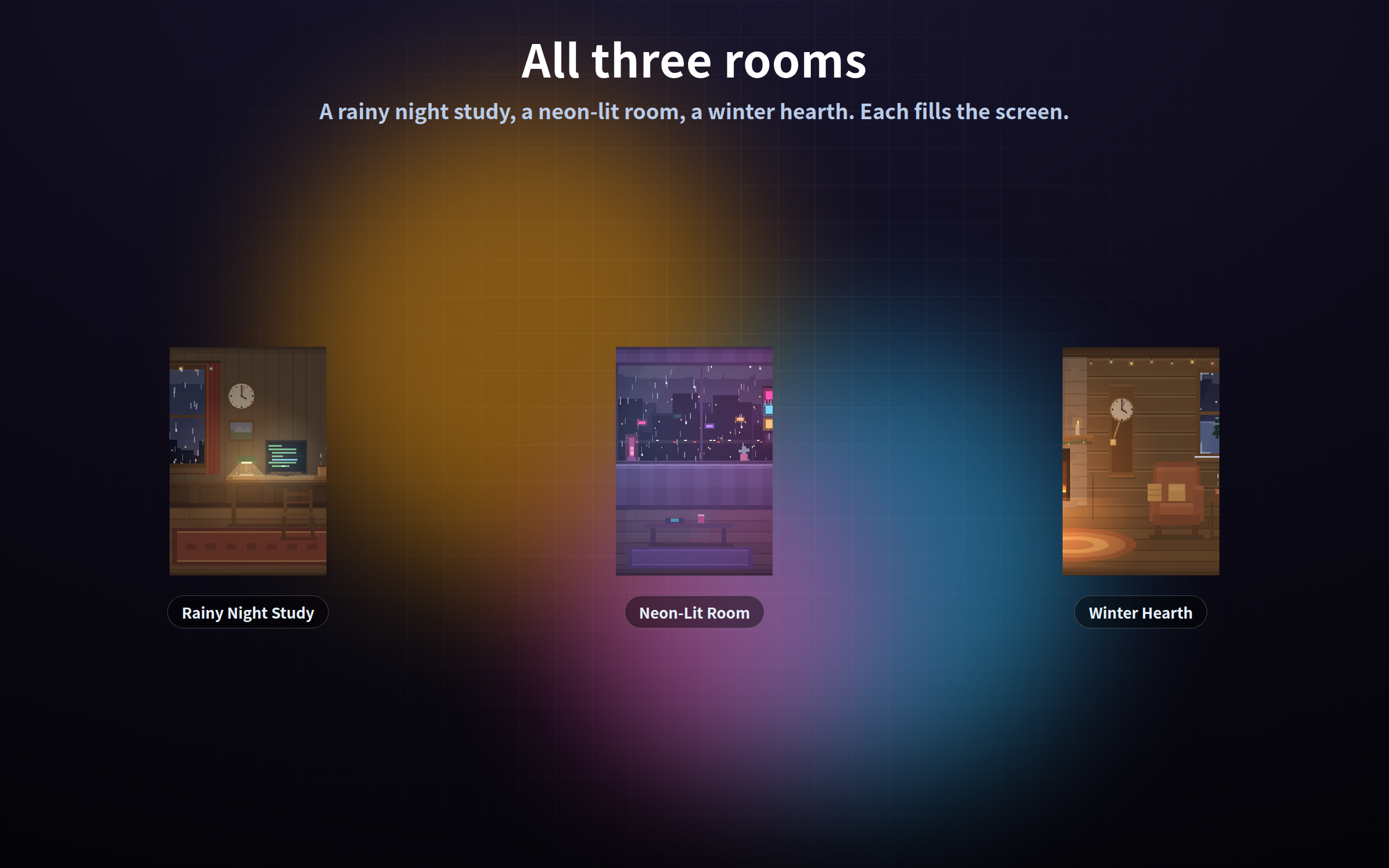
Full-screen animated room backgrounds for your stream. Rain falls, lamps flicker, the wall clock turns. Made to sit behind a starting-soon screen, a just-chatting stream or a work session. Three rooms, all included.
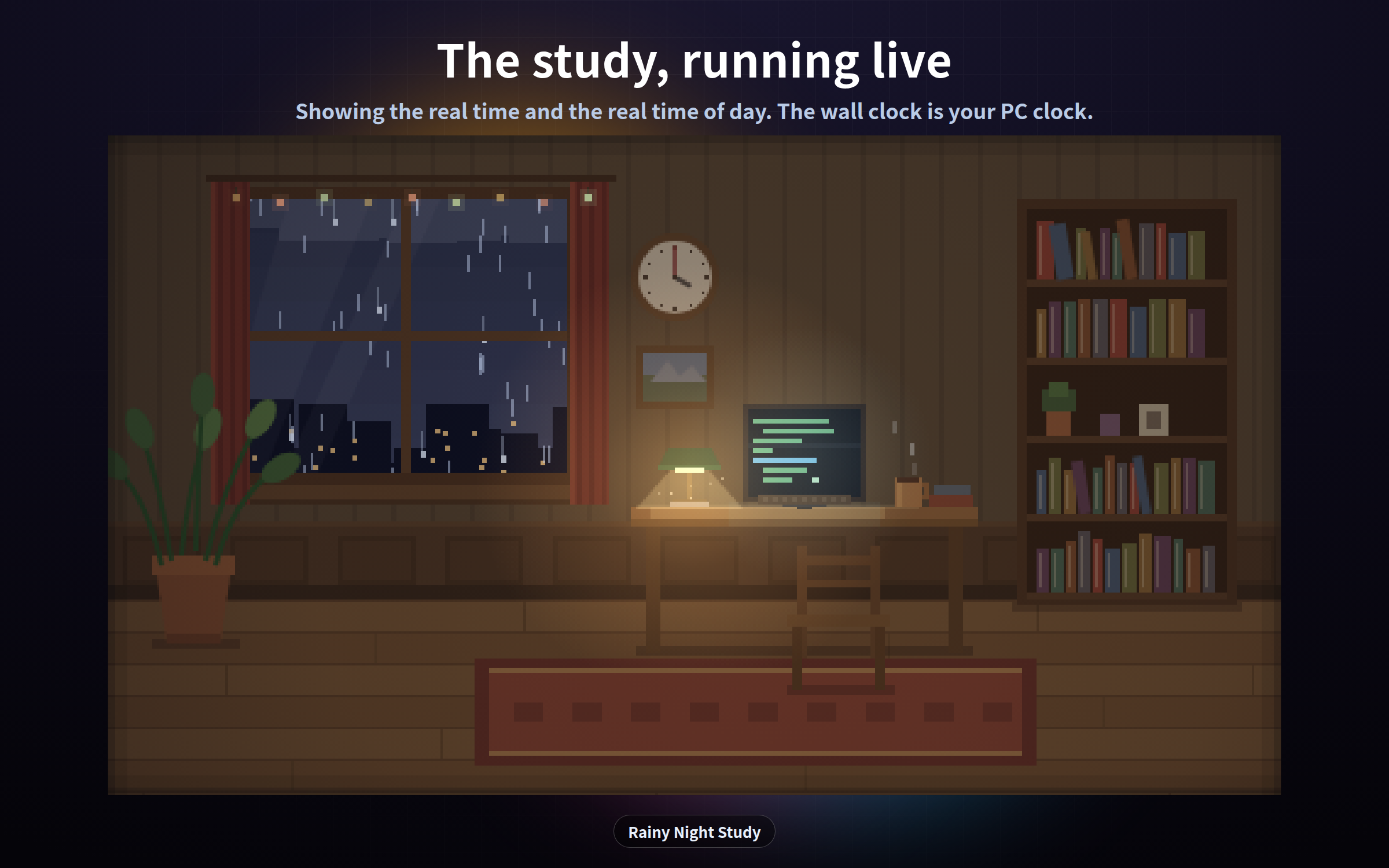
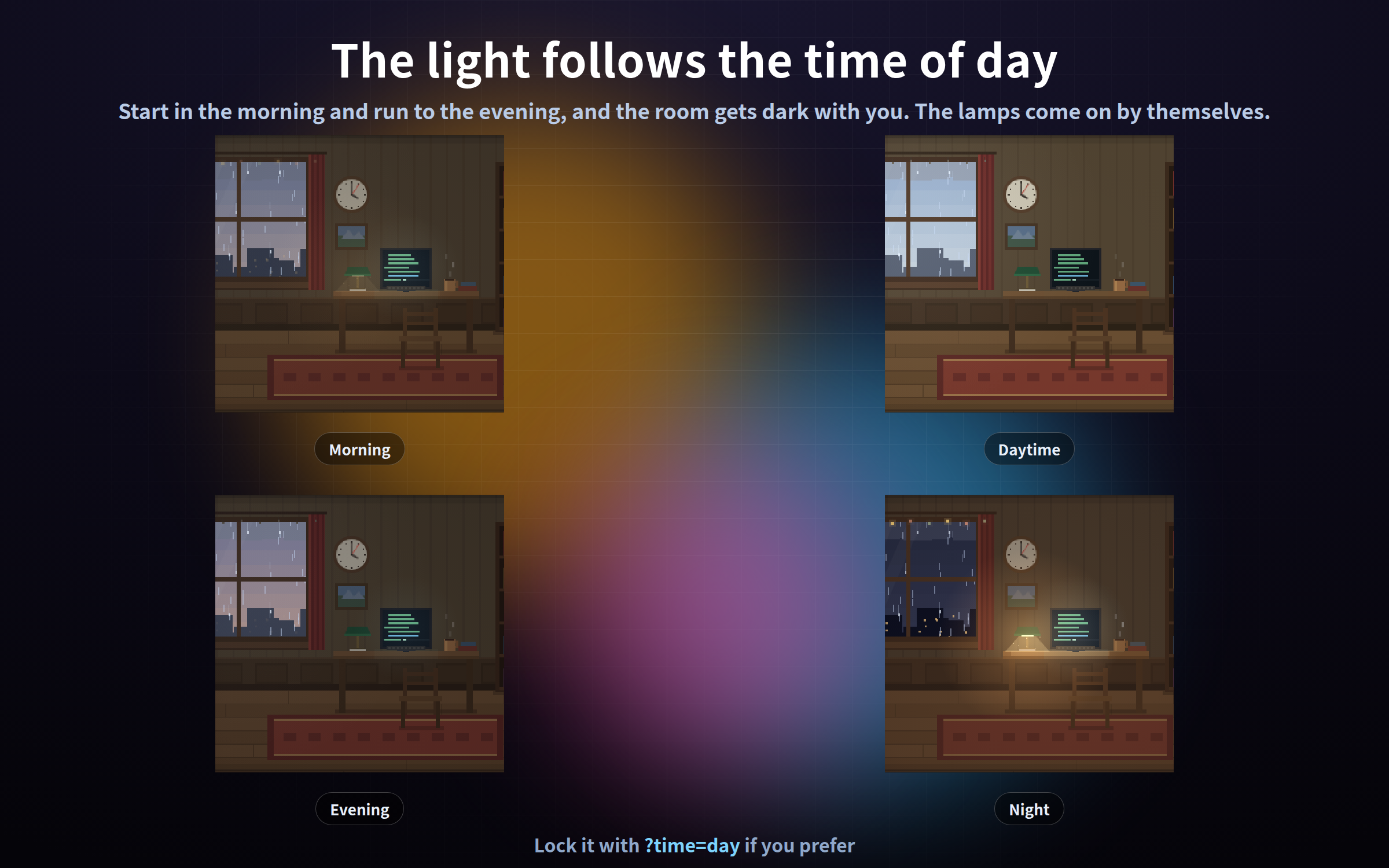
None of it is decoration: the real time and the real time of day are in the picture. The wall clock shows your actual current time, the light outside changes through morning, day, evening and night, and the room lamps come on by themselves when it gets dark.
This is not a video file. Every frame is drawn one pixel at a time from the current time, so the download is tiny and there is no loop seam.
One single HTML file each. No install, no account, works completely offline.
## The three rooms
- **study.html** - Rainy night study. Bookshelves, a desk lamp, rain on the window, a round wall clock. For quiet work streams and just-chatting.
- **neon.html** - Neon-lit room. Signs and a city skyline outside, a digital clock. For night streams and music streams.
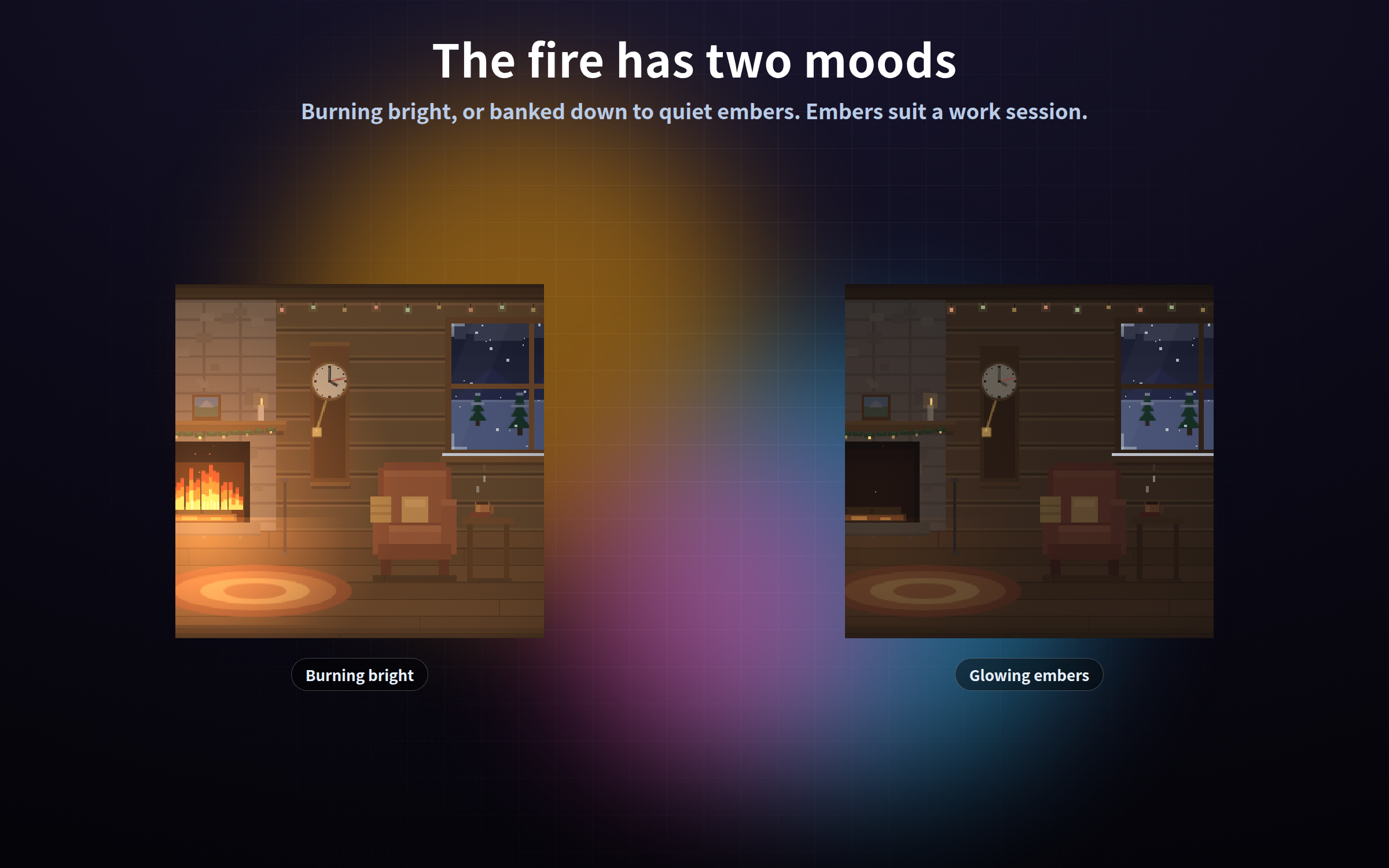
- **hearth.html** - Winter hearth. The fire is the main light source and the whole room flickers with it. A pendulum clock. For winter and end-of-year streams.
## Setup
1. OBS: Sources - "+" - Browser - tick "Local file" - pick the .html you want
2. Set the width and height to your CANVAS size (e.g. 1920 x 1080)
3. Put it at the BOTTOM of the Sources list, so everything else sits on top
This is a 480x270 pixel-art canvas scaled up by whole numbers. 1920x1080 is exactly 4x. Odd sizes make the pixels blurry, so stick to 16:9 sizes like 1920x1080 or 1280x720.
## What follows the real clock
- The wall clock shows your actual current time
- The light outside changes through morning, day, evening and night (default)
- The room lights come on by themselves when it gets dark
`?time=real` follow the real clock (default) / `?time=morning` / `?time=day` / `?time=evening` / `?time=night`
Lock it if you always stream at night but want a daytime study.
## The gear button
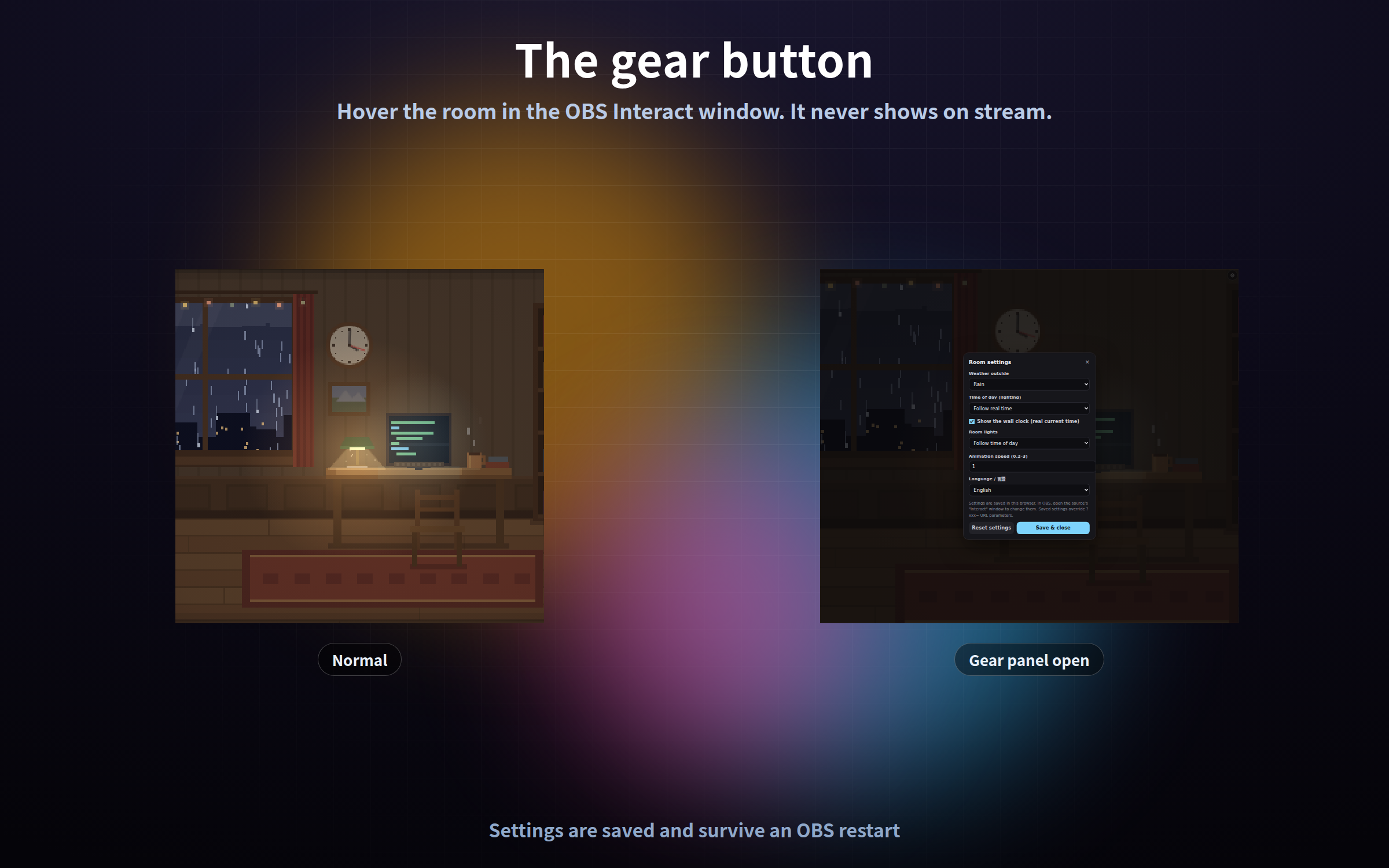
1. Right-click the room in the OBS Sources list and choose "Interact"
2. Move the mouse over it - a gear appears in the top right (or press the S key)
3. Change the weather, time of day, lights and speed, then "Save and close"
The gear is invisible the rest of the time, so it never shows on stream. Settings are saved and survive an OBS restart. Add `?key=a` / `?key=b` to give the same room different settings in different scenes. Settings are stored per browser, so always configure inside the OBS "Interact" window.
## Settings via URL
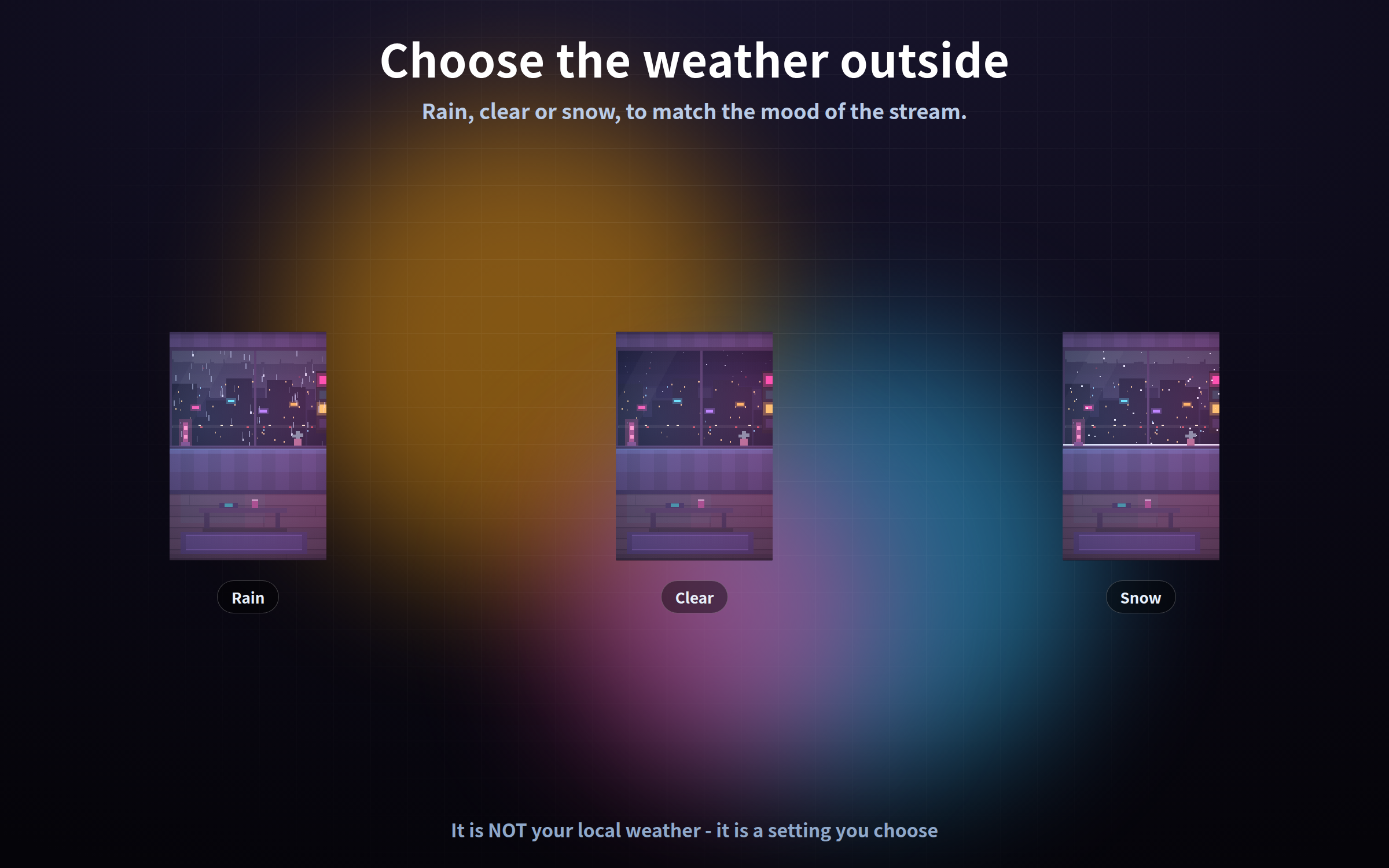
`?weather=rain` rain / clear / snow (study and neon start on rain, hearth on snow) / `?time=night` / `?lights=on` auto / on / off / `?clock=off` / `?speed=0.5` 0.2-3 / `?format=12` (neon and hearth only) / `?fire=embers` (hearth only) / `?mode=stream` never show the gear
## Good to know
- No sound. There is no rain or fireplace audio.
- The weather is NOT your local weather. Rain, clear and snow are settings you choose.
- The time comes from your PC clock.
- No characters appear. It is rooms, objects and light.
- Tested on current Chrome and Edge, in the OBS Studio 28+ browser source.
- Each frame is computed from the current time rather than accumulated, so memory does not creep up when left running all stream.
- It makes no external request of any kind - no internet needed.
- Streaming and commercial use OK (see the included terms).
Purchase
In order to download this tool you must purchase it at or above the minimum price of $3 USD. You will get access to the following files:
Leave a comment
Log in with itch.io to leave a comment.